Question: How do I adjust keystone correction on the Laser Smart Gaming Projector?
Answer:
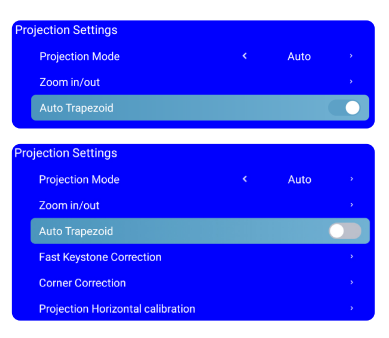
If the image appears stretched or angled, use Keystone Correction through the menus. The manual provides the following instructions :
Auto Keystone:
Go to Settings.
Projection Settings.
Trapezoid Settings.
Enable Auto Trapezoid.
Manual Keystone:
Open Projection Settings.
Use the direction buttons to adjust Fast Keystone or Corner Correction.
Press OK to switch corners.
Digital correction is limited to plus or minus 15 degrees vertically.
Was this article helpful?
That’s Great!
Thank you for your feedback
Sorry! We couldn't be helpful
Thank you for your feedback
Feedback sent
We appreciate your effort and will try to fix the article