Description: USB wired screen mirroring steps and HCCast app prompts for Android.
Question:
How do I mirror an Android phone using a USB cable?
Answer:
Model reference: PJ-THHW2W-268
Applies to: PJ-THHW2W-268
If your SKU differs, search our support page by your Model SKU to find the correct article.
To try a wired connection from a compatible Android device to the Laser Portable Wi-Fi LED Projector:
1. On the projector Home screen, open Wired Screen.
2. Using the Android phone, scan the QR code shown on the projected screen.
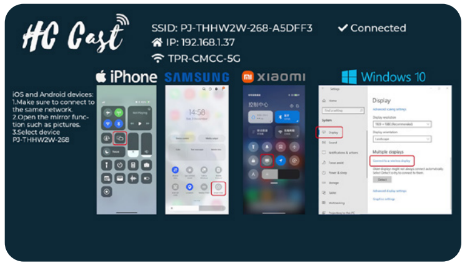
3. If prompted, download and install the HCCast (HCLink) app.
4. Open the app and connect the phone to the projector with a compatible USB cable.
5. Allow the permissions requested by the app and wait for the connection.
The manual documents this Android wired mirroring workflow. A compatible cable is required and is not listed in the box contents.
Was this article helpful?
That’s Great!
Thank you for your feedback
Sorry! We couldn't be helpful
Thank you for your feedback
Feedback sent
We appreciate your effort and will try to fix the article