Description:
Create time-limited PIN access using the Connect SmartHome app and review existing or expired codes.
Question:
How can I create a temporary door access PIN?
Answer:
Model reference: LSH-DBPLV-899
Applies to: LSH-DBPLV-899
If your SKU differs, search our support page by your Model SKU to find the correct article.
You can create temporary access PINs for the Laser Smart Deadbolt Lock with Palm Vein Recognition through the Connect SmartHome app.
1. Open the Connect SmartHome app and select your paired deadbolt.
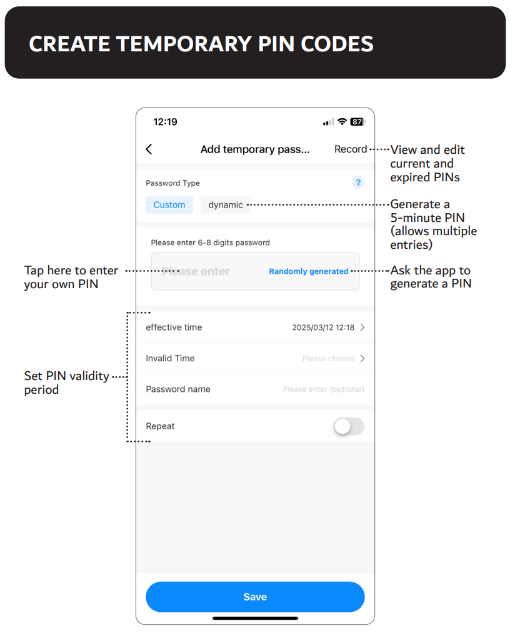
2. Open the Temporary Password section.
3. Choose the type of PIN you need. The manual shows an automatically generated five-minute PIN option that permits multiple entries, and a custom PIN option.
4. For a custom PIN, enter the PIN or ask the app to generate one.
5. Set the start and end time for the PIN, where the app provides those fields.
6. Save the new temporary PIN and provide it only to the intended person.
7. Use the Temporary Password record area to review active and expired PINs.
If a temporary PIN does not open the lock, first confirm that its validity period has not expired and that the PIN was entered correctly. Check the app to confirm that the code is still active.
Do not share permanent administrator PINs to provide temporary access.
Was this article helpful?
That’s Great!
Thank you for your feedback
Sorry! We couldn't be helpful
Thank you for your feedback
Feedback sent
We appreciate your effort and will try to fix the article