Question: How do I use wireless screen mirroring on my Laser Portable LED Projector?
Answer:
Model reference: PJ-TUHW1W-339
Applies to: PJ-TUHW1W-339
If your SKU differs, search our support page by your Model SKU to find the correct article.
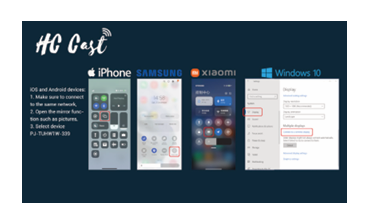
The Laser 720P HD Portable Projector - White supports wireless mirroring from compatible Apple devices, Samsung devices and Windows PCs.
For an iPhone or iPad:
1. Open Wireless Screen on the projector.
2. Note the projector name displayed at the top of the screen.
3. Connect the projector and Apple device to the same Wi-Fi network.
4. Open Control Centre on the Apple device.
5. Select Screen Mirroring.
6. Select the projector name.
7. Wait for the connection to complete.
For a Samsung device:
1. Open Wireless Screen on the projector.
2. Connect the projector and Samsung device to the same Wi-Fi network.
3. Open the Quick Panel on the Samsung device.
4. Select Smart View.
5. Select the projector name.
6. Follow the prompts and allow the requested permissions.
For a Windows PC:
1. Open Wireless Screen on the projector.
2. Note the projector name.
3. Connect the projector and computer to the same Wi-Fi network.
4. Press the Windows key and K together to open Cast.
5. Select the projector name.
6. Wait for the connection to complete.
If mirroring fails, confirm that the source device and projector are connected to the same Wi-Fi network.
Was this article helpful?
That’s Great!
Thank you for your feedback
Sorry! We couldn't be helpful
Thank you for your feedback
Feedback sent
We appreciate your effort and will try to fix the article