Description: Register fingerprints in the Connect SmartHome app and understand administrator and regular user limits.
Question:
How do I add or replace fingerprints on the lock?
Answer:
Model reference: LSH-INDCB-905
Applies to: LSH-INDCB-905
If your SKU differs, search our support page by your Model SKU to find the correct article.
The Laser Smart Internal Door Lock with Fingerprint supports up to 20 saved fingerprint records, registered through the Connect SmartHome app.
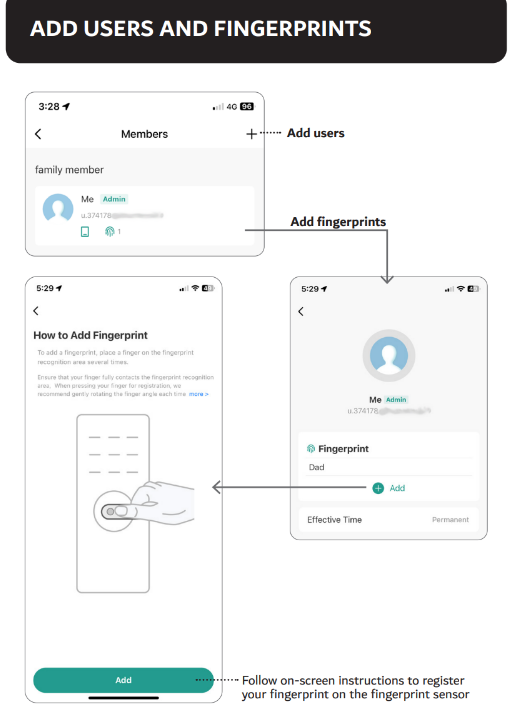
To register a fingerprint:
1. Open the Connect SmartHome app and select the lock.
2. Go to Add User > Add Fingerprint.
3. Follow the on-screen instructions and touch the fingerprint sensor as prompted.
4. Adjust the position of your finger slightly between scans. Do not press excessively hard or lightly.
5. Complete the setup and test that the registered fingerprint unlocks the door.
The first three registered fingerprints are administrator records. The next 17 are regular user records. To add a different administrator fingerprint when all three administrator records are in use, remove an existing administrator fingerprint in the app before registering the new one.
For better recognition, use a clean, dry finger and follow the manual's advice to register at least two fingers from each hand, subject to the available record capacity.
Administrator and regular user fingerprints do not have identical access in every thumb-latch position. See the locking modes article for that difference.
Was this article helpful?
That’s Great!
Thank you for your feedback
Sorry! We couldn't be helpful
Thank you for your feedback
Feedback sent
We appreciate your effort and will try to fix the article