Description:
How to install and update apps through Google Play and what Android 14 AOSP means for app availability and compatibility.
Question:
How do I install apps and why might some apps be unavailable?
Answer:
Model reference: PJ-CBFAC1-827
Applies to: PJ-CBFAC1-827
If your SKU differs, search our support page by your Model SKU to find the correct article.
The Laser 1080p Smart Outdoor Projector with 144-inch Screen and Soundbar runs Android 14 AOSP, which means some apps may not be compatible with the projector or available through Google Play. App features and performance may also differ from Android phones, tablets or Android TV devices.
To install an app:
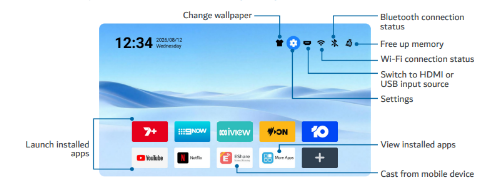
1. From the Home screen, select More Apps.
2. Open Google Play Store.
3. Sign in to your Google account.
4. Search for the app.
5. Follow the on-screen installation instructions.
If an app cannot be found in Google Play:
- The app may not support Android 14 AOSP.
- The Quick Start Guide states that you may be able to install it using a USB device or a third-party Android app store.
After setup, update installed apps through Google Play:
1. Select your profile icon.
2. Select Manage apps and device.
3. Select Updates available.
4. Select an app and choose Update, or select Update all.
If a pre-installed app does not work and no update is available, the Quick Start Guide instructs you to uninstall it and install the latest available version from Google Play Store.
Was this article helpful?
That’s Great!
Thank you for your feedback
Sorry! We couldn't be helpful
Thank you for your feedback
Feedback sent
We appreciate your effort and will try to fix the article