Question: How do I take photos with the Laser Kids Play Phone Camera?
Answer:
Model reference: CA-KPHNPP-117 (Purple)
Applies to: CA-KPHNPP-117
If your SKU differs, search our support page by your Model SKU to find the correct article.
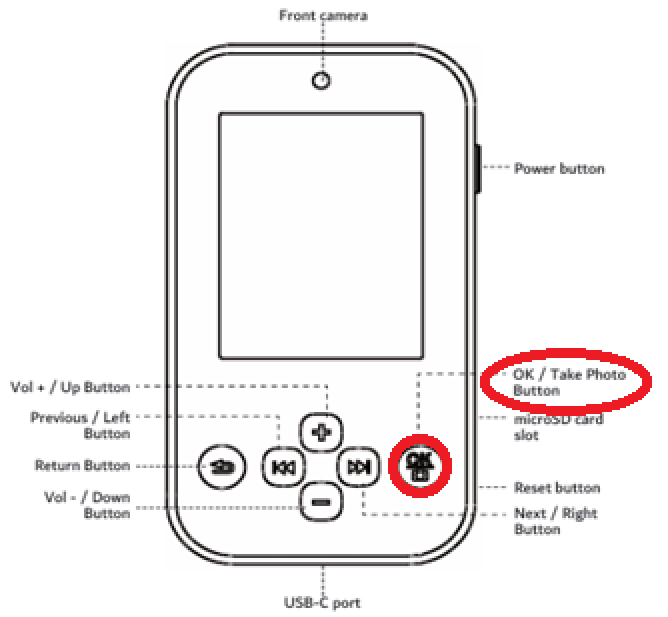
To take photos with the Laser Kids Play Phone with Camera and MP3 Playback - Purple:
1. Turn the camera on.
2. Press OK to reach the Apps screen.
3. Open the Camera icon.
4. Press the camera switch button to change between the front and rear cameras.
5. Press the + or - buttons to add and choose real-time effects.
6. Press OK to take the photo.
Photos are saved as JPEG files. A compatible microSD card is required for saving photos.
Was this article helpful?
That’s Great!
Thank you for your feedback
Sorry! We couldn't be helpful
Thank you for your feedback
Feedback sent
We appreciate your effort and will try to fix the article