Laser SmartHome (LSH) and Connect SmartHome (CSH) are our two smart home apps. To make things simpler going forward, we're retiring Laser SmartHome.
Both apps work with the same devices, so nothing you own will stop being supported - you'll just need to move your devices over to the Connect SmartHome app.
This article explains what's changing, when it's happening and walks you through moving your devices step by step.
What's changing and when
From 30 September 2026
We'll stop updating Laser SmartHome. That means no new features, no new device support and no bug fixes. The app will keep working as it does now, with no loss of features.
From 31 December 2026
We'll stop providing customer support for Laser SmartHome. The app and your devices may eventually stop working, without further notice.
Ongoing
Any new smart home products we release after 30 September 2026 will only work with Connect SmartHome.
You don't have to migrate today, and you won't lose any features by waiting a little while. But we strongly recommend moving to Connect SmartHome before 31 December 2026, so your devices, automations and support keep working without interruption.
Before you start
Make sure your phone is ready:
Bluetooth is turned on
Your phone is connected to a 2.4GHz Wi-Fi network
You have a list handy of your devices, plus any automations, schedules or scenes you've set up, so it's easy to recreate them
How to migrate your devices
Move your devices over one at a time. It's a good idea to do this when you've got a few spare minutes, rather than all at once.
Download the Connect SmartHome app from the App Store or Google Play or scan the QR code provided below.
Open the app and select Sign up.
Enter your email address and select Get.
Enter the verification code sent to your email to confirm your address, then log in to the app.
App Store:
https://apps.apple.com/au/app/connect-smarthome/id1462850943
Google Play:
https://play.google.com/store/apps/details?id=com.connect.smarthome

Important: Moving a device is not automatic. You need to remove each device from Laser SmartHome, then add it to Connect SmartHome.
Removing a device from Laser SmartHome factory resets it. You will also need to recreate automations, schedules, scenes and shared users, and reconnect Google Home or Amazon Alexa where used.
Step 2: Unpair each device from Laser SmartHome
Do this one device at a time:
On the Laser SmartHome home screen, press and hold the device tile.
The device will already be selected on the next screen. Tap the Remove device icon in the bottom right corner.
Confirm the deletion.
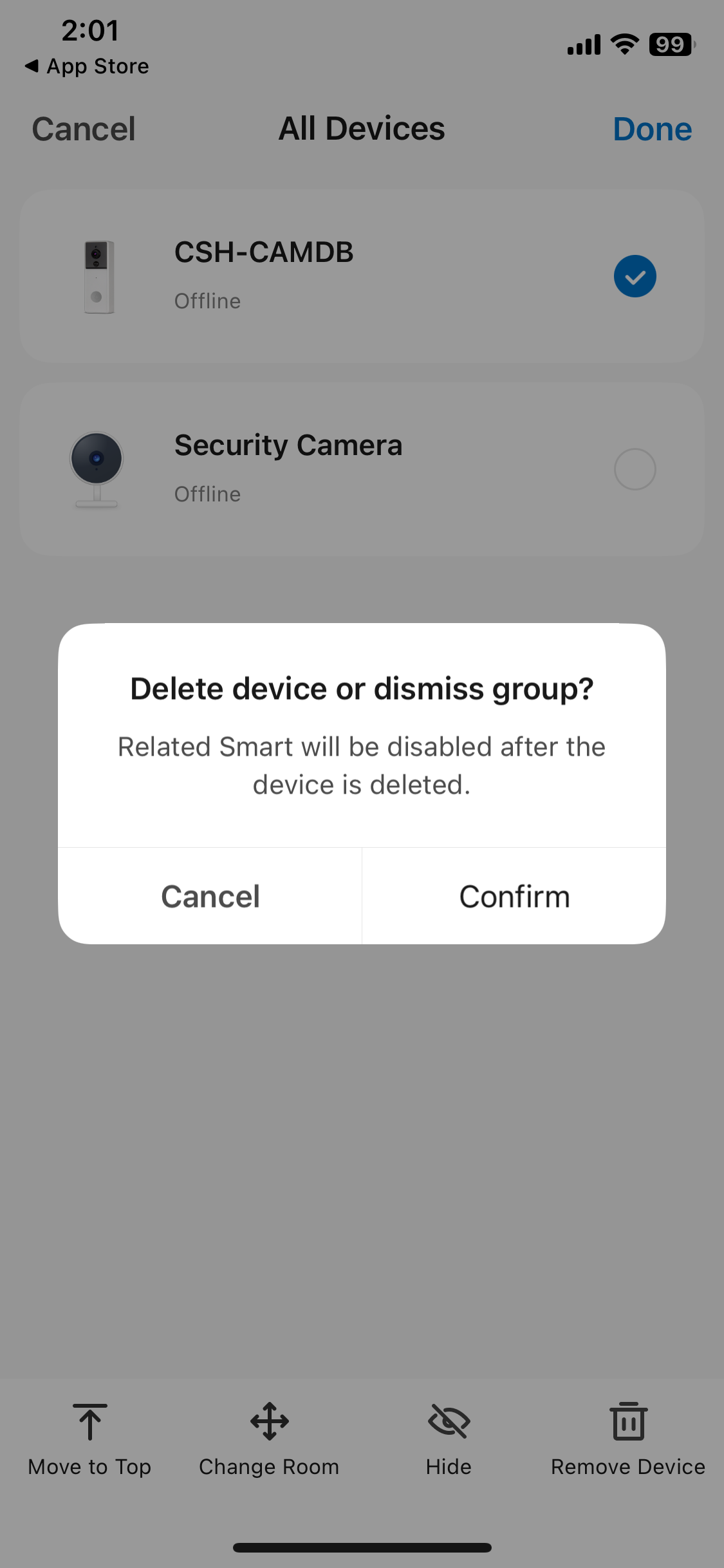
Removing a device from Laser SmartHome factory resets it, and it will restart automatically.
Step 3: Pair each device with Connect SmartHome
In the Connect SmartHome app, tap the + icon in the top right corner, then tap Add device.
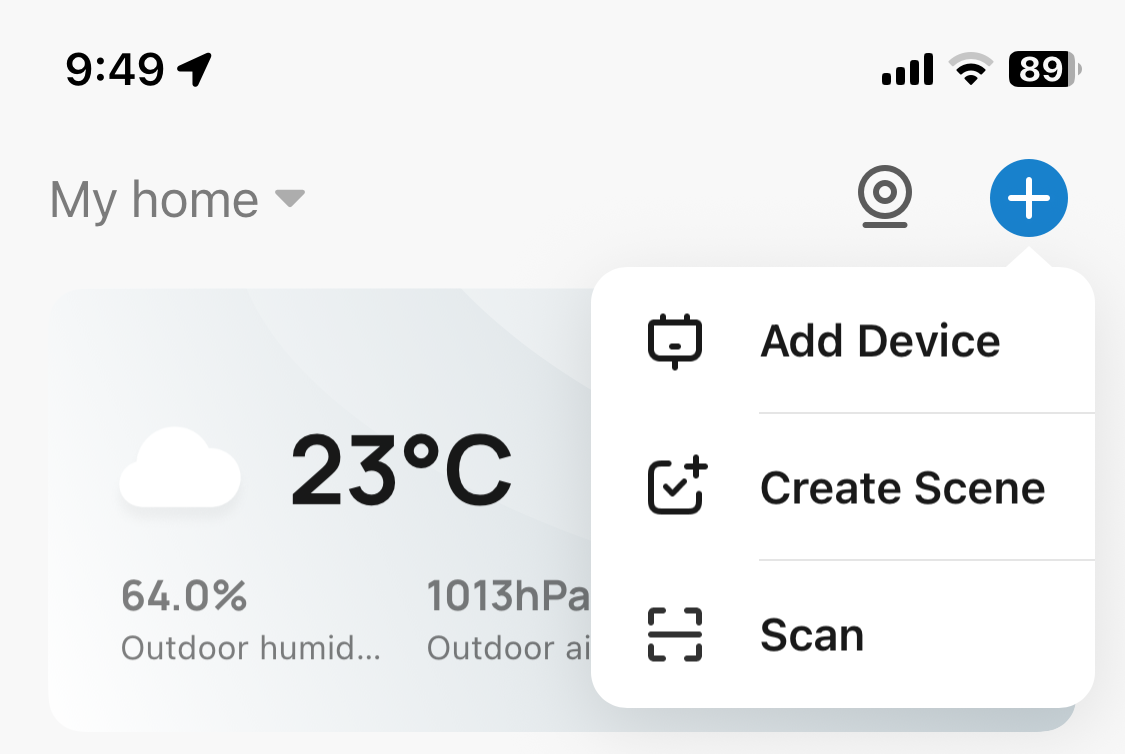
If your device supports Bluetooth, it should appear on screen automatically within about 30 seconds.
Tap the device name and follow the on-screen instructions to pair it.
Device not showing up?
Select the device category from the left-hand column, then the device type from the right-hand column, to add it manually.
Device won't pair?
Try factory resetting it. Check the steps for your model in the device's user manual. You can find manuals by searching your product's model number on our support portal.
Step 4: Set everything back up
Once a device is paired, recreate any automations, schedules, scenes and shared users you had for it.
If you use Google Home or Amazon Alexa, reconnect Connect SmartHome to these services too.
Step 5: Delete your Laser SmartHome account
Once all your devices have been moved across and you're happy everything's working in Connect SmartHome, delete your Laser SmartHome account.
This is an important last step - it isn't done for you automatically, and keeping the old account around isn't necessary once you've migrated.
Need a hand?
For step-by-step video walkthroughs, visit our Connect SmartHome YouTube channel:
https://www.youtube.com/@connect6719
If a device won't pair even after a factory reset, or you get stuck at any step, contact our support team.
Phone: +61 (0)2 9870 3388
Email: support@laserco.com.au
Support portal: https://help.laserco.com.au
Was this article helpful?
That’s Great!
Thank you for your feedback
Sorry! We couldn't be helpful
Thank you for your feedback
Feedback sent
We appreciate your effort and will try to fix the article