Question: How do I connect my Laser Multi-Region DVD Player to my television?
Answer:
Model reference: DVD-HD019-568
Applies to: DVD-HD019-568
If your SKU differs, search our support page by your Model SKU to find the correct article.
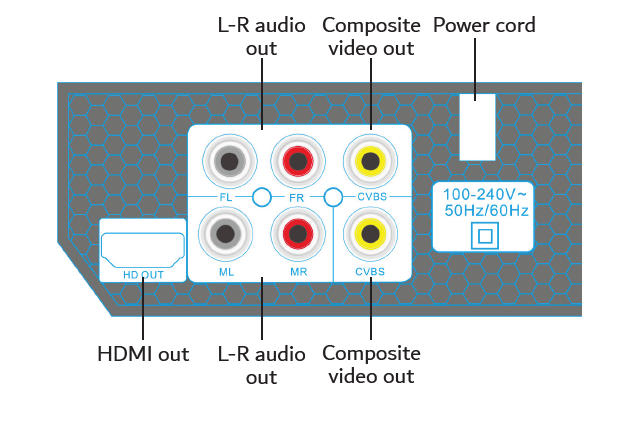
The Laser Multi-Region DVD Player with HDMI / Composite / USB can connect to a compatible television using HDMI or composite AV.
To connect using HDMI:
1. Connect an HDMI cable to the HD OUT port on the DVD player.
2. Connect the other end to an HDMI input on your television.
3. Turn on the television and DVD player.
4. Select the matching HDMI input on the television.
To connect using composite AV:
1. Connect the yellow RCA cable to a Composite Video Output marked CVBS on the DVD player.
2. Connect the other end to the yellow video input on the television.
3. Connect the red and white RCA audio cables to the matching audio inputs.
4. Select the matching AV input on the television.
An HDMI cable is not included and is sold separately.
Was this article helpful?
That’s Great!
Thank you for your feedback
Sorry! We couldn't be helpful
Thank you for your feedback
Feedback sent
We appreciate your effort and will try to fix the article